
|
Home Table of Contents News Dev Blogs Gallery Timeline Legend Tags Sponsors |
|
Join us on... |

|

|

|

|
|
Home Table of Contents News Dev Blogs Gallery Timeline Legend Tags Sponsors |
|
Join us on... |
|
|
|
Current: Month Day, Year
To create your own cubemap aka skyroom for usage in Makehuman 2 is quite easy, as long as you are familiar with rendering
in Blender!
Punkduck has also created and shared a blender side addon to render said cubemaps in a very intuitive and thoughtout manner
allowing for quick and easy rendering, exporting, & usage in a few clicks with your existing blender render rooms.
To begin, you should download and install the blender side addon-Cubemap at the following link:
The workflow Blender side, once this is installed:
Another thing to keep in mind, is that if you choose to place the maps inside the custom folder for MH2 data/shaders/skybox/your_cool_name here
you can actually immediately use/test this once it renders out. Please note that if it fails to render or you stop it for some reason via abort,
and would like to pick up on a specific render the buttons on panel allow for this now!
Once you click render this will result in a selection of pre designed images being rendered to a pre selected folder in the actual layout necessary to
create a properly working cubemap/skyroom inside of MH2. This orientation is difficult to replicate and much time is needed to do
this manually. The cubmap addon is highly recommended as it saves a very lot of work in this!
The Workflow MH2 side:
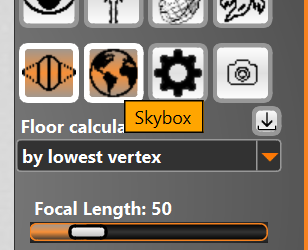
If you have put the images to the correct location mentioned above you can now enable the usage of them in MH2. Ensure you are in skybox mode,
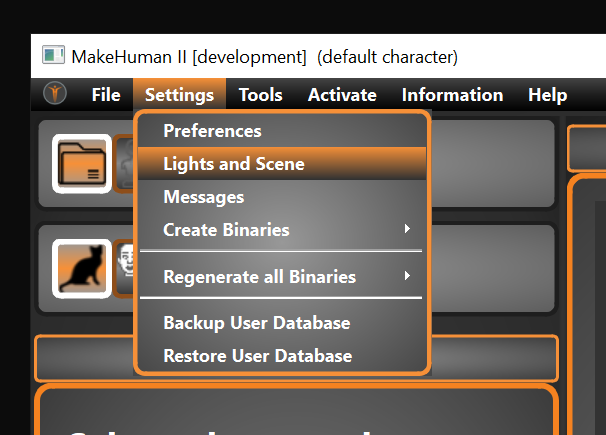
Choose from the drop down, Settings/Light and Scene.
In this window you can then see all of your floors, and skyrooms to use.
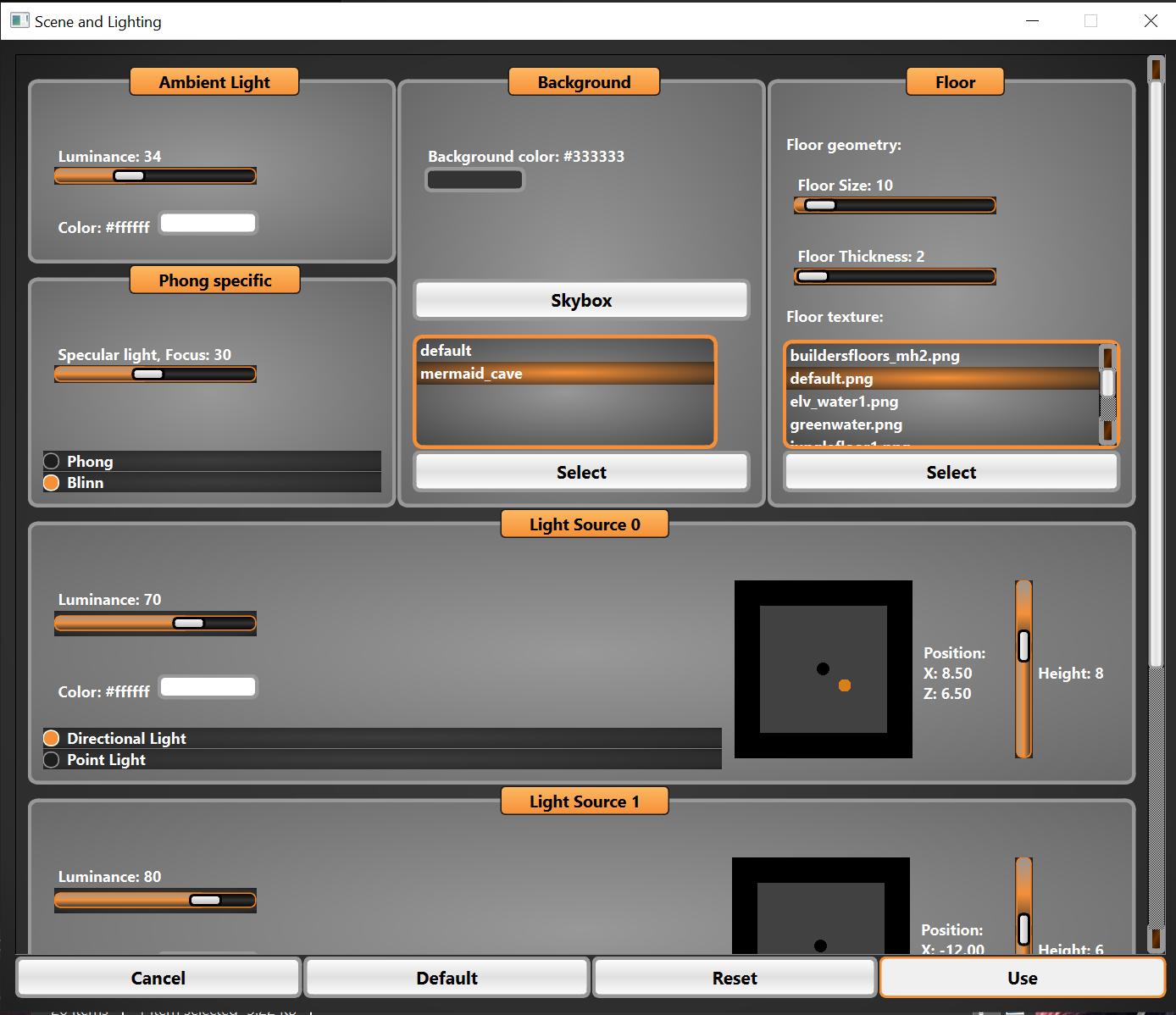
Enable your skybox Via background/skybox/your choice of drop down rooms. Click select, and use and close this window. You should now see your skyroom around your
model in mh2.