|
Home Table of Contents News Dev Blogs Gallery Timeline Legend Tags Sponsors |
|
Join us on... |

|

|

|

|
|
Home Table of Contents News Dev Blogs Gallery Timeline Legend Tags Sponsors |
|
Join us on... |
|
|
|
Current: Month Day, Year
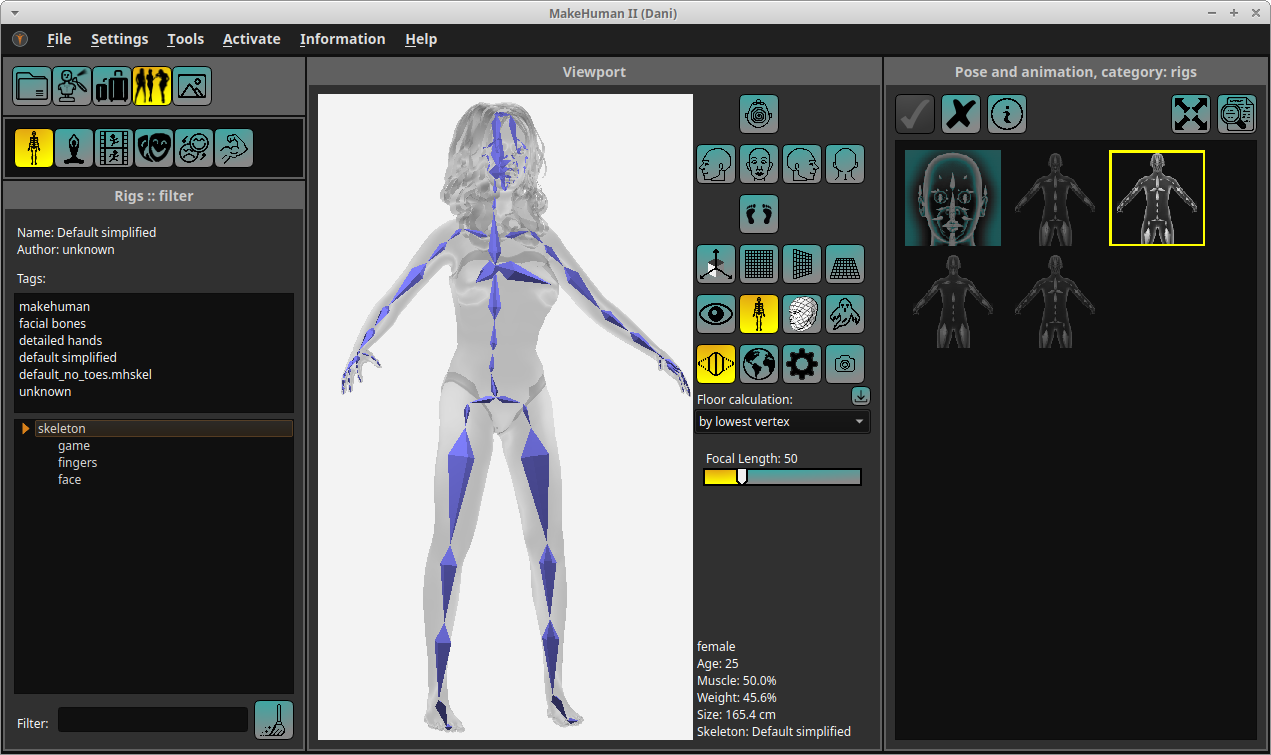
MakeHuman works with an own standard skeleton which is always present. So even without a skeleton it is possible to pose or animate the character. Nevertheless for an export into another system a skeleton is needed.
A skeleton can only be used once and can be replaced by another skeleton.
The currently selected skeleton is marked with a yellow frame. A green frame means, that the skeleton is used.
|
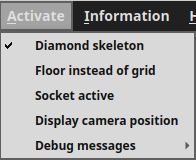
To activate diamond draw mode for skeleton, simply activate it with the menu. Default is a draw mode using lines.
The colors indicate the mode
|
Hint: If the program shows too many items on right side, it is possible to supply a skeleton with extra tags, these tags are then used instead of the tags provided in the skeleton files.
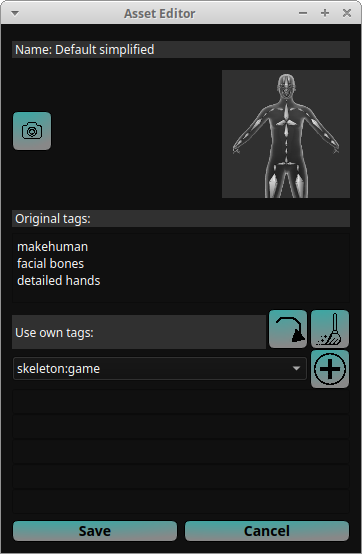
Select a skeleton before. Press  to open asset editor.
|
You can now change the information:
Hint: the tags are saved in the database, the original tags in the files are not changed. The icon however will replace the old one. |


 takes a screenshot to be used as a thumbnail. Best to switch off skybox with
  and use a one-colored background. Under "Settings" change light and scene and select a
background color with contrast. It has to be done in skeleton view before. We also recommend diamond draw mode.
and use a one-colored background. Under "Settings" change light and scene and select a
background color with contrast. It has to be done in skeleton view before. We also recommend diamond draw mode. button.
You can also delete a tag row or delete all tags by pressing
button.
You can also delete a tag row or delete all tags by pressing